TL;DR #
This is basically how I use 3dfilamentprofiles.com (“3DFP”) to track my filament, how I use their labels, etc.
3DFP #
3DFP is a site that maintains a database of filaments that are available. You can then manage your inventory of spools of those filaments.
Accounts are free.
More than just “what filament do I have”, 3DFP uses QR codes in interesting ways to help you manage your filament.
Swatches #
Mark has a whole Filament Swatch System designed for use with 3DFP. It includes filament swatches, AMS swatch holders, cereal box holders, etc.
Labels #
Swatches get labels, and there are two kinds:
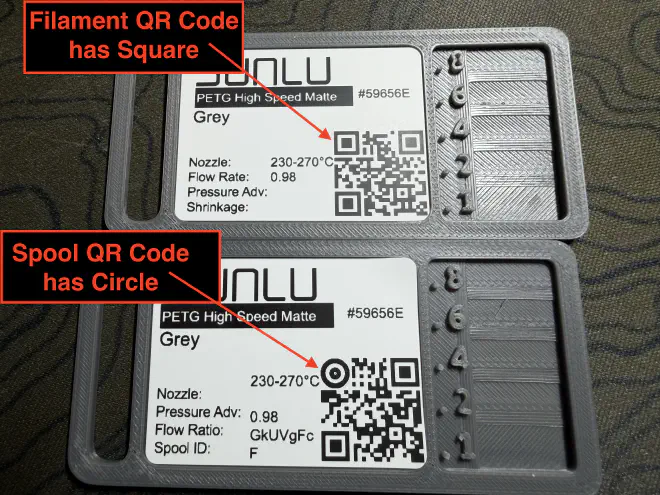
Filament Labels link to a filament in the 3DFP database, like “Bambu PLA Jade White”.
These have QR codes with a square in the top left corner.
Spool Labels link to a particular spool of a filament in your inventory, like “one of your three spools of Bambu PLA Jade White”. They’re like serial numbers for your spools.
These have QR codes with a square in the top right corner.
Usage #
Filament Library #
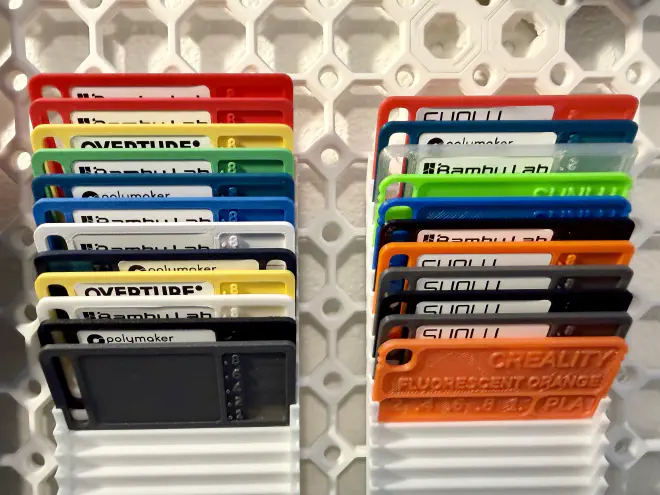
When I open a filament for the first time, I print two swatches. One gets a filament label, and the other gets a spool label.
I store my filament labels all in one spot, so I have a quick reference of all the filaments I have.
Spool Swatches #
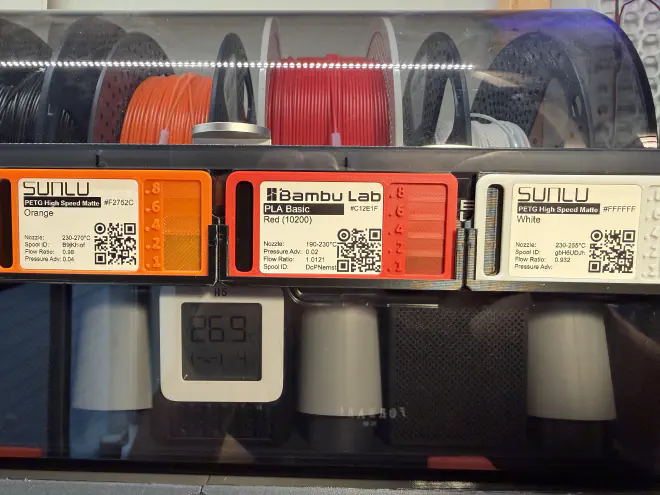
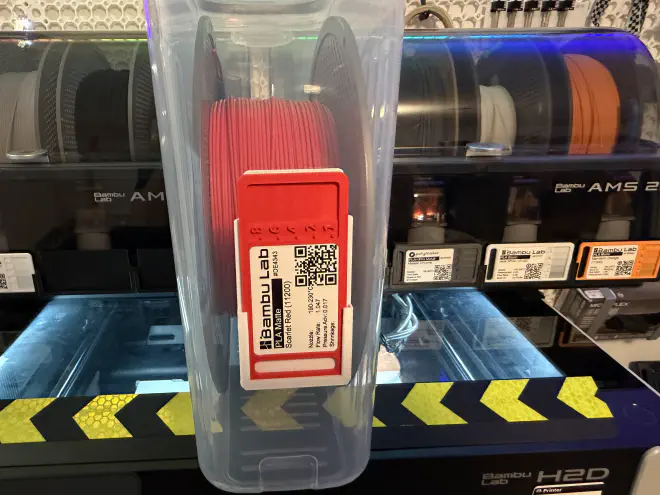
The Spool Swatch travels with the spool of filament. It’s either in a slot on the AMS holder from the Filament Swatch System, or in a slot on the Cereal Box Holder from the same system.
Locations #
3DFP also has QR codes for locations. I have one for each printer, and each of my storage shelves.
I also have a “Dead” location for spools that I’ve used up. I want to keep track of them, rather than delete finished spools.
Workflow #
Printing Labels #
3DFP has a couple different formats for labels. If you’re using a printer that is supported by Labelife, choose either of the “Labelife - label” options. Otherwise, choose one of the other options that your printer supports (PNG or SVG).
Mass printing #
3DFP has an “export all labels” option that only supports printing on Avery labels; useful for if you’re bulk-adding your existing inventory.
I haven’t done this, so I’m not sure exactly which Avery product to use.
Swapping Filaments #
So here’s my normal workflow when I’m swapping filaments.
- Take the spool out of the AMS.
- Grab the spool swatch.
- Scan the QR code on the spool swatch; this takes me to the page for that spool in 3DFP.
- Weigh the spool.
- Input the weight into 3DFP. Save
- Put the spool in a cereal box.
- Make sure the Spool Swatch is in the slot on the Cereal Box.
- Put it in storage, and scan the Location label QR code to update the spool’s location.
🎉 The spool’s amount remaining and location are updated in 3DFP.
Loading filaments into a printer is the same in reverse, but I don’t need to weigh the spool.
Gear I Use #
- Praki Cereal Boxes ↗ for filament storage.
- Label Printer - make sure whatever you get is compatible with Labelife, the software that 3DFP labels are built for.
I use the Phomemo 344WF ↗ because it can do 4x6 labels and has Wifi. It’s a little more convenient than the Bluetooth printers for me. It’s pricey though.- The 344WF doesn’t appear to be sold anymore. The Phomemo 249WF ↗ seems like its replacement. Does small labels and 4x6, and still has wifi. Looks like no BlueTooth, though.
- Other options like the Phomemo M110 ↗ are smaller, but don’t have Wifi and can’t print 4x6 labels.
- Phomemo 40mmx30mm labels ↗ are what I use.