The Problem #
Ever had inside threads or circles end up looking like a deranged spider got inside your print?
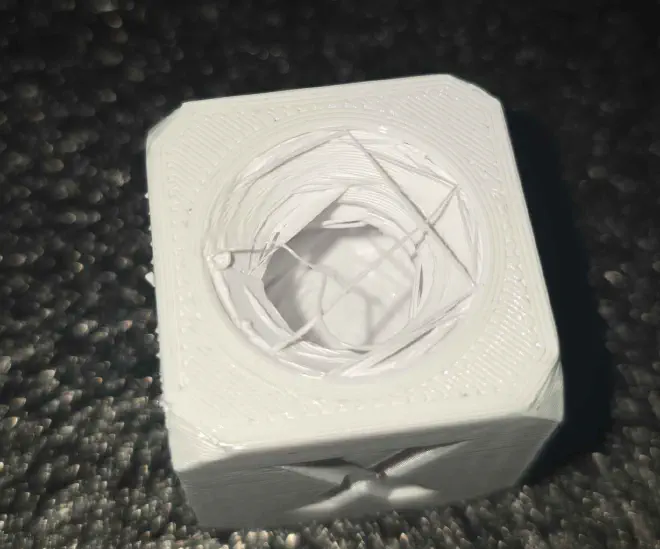
This is commonly caused by one of two things:
- setting your wall order to one of the “outer first” options. Threads are overhangs, and that means you’ll print the thread wall without anything to adhere to the previous layer, so it gets dragged around the inside of the circle.
- printing too fast. your printer can go pretty fast on circles and its often not enough time to adhere the filament to the previous layer, so it gets dragged around the inside of the circle.
Easy fixes, right? Slow down your print speed or change your wall order.
But sometimes you don’t want to slow down your whole print, or change the wall order for the whole object.
Modifiers to the Rescue #
You can use a cylinder modifier to really easily change settings just where you need it.
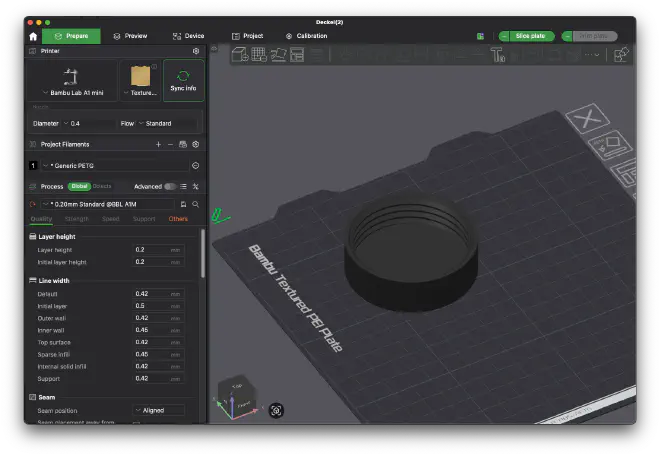
Add a modifier to the object, and size it to to fit just the threads. Don’t forget to move the modifier off the build plate ( in the z direction).
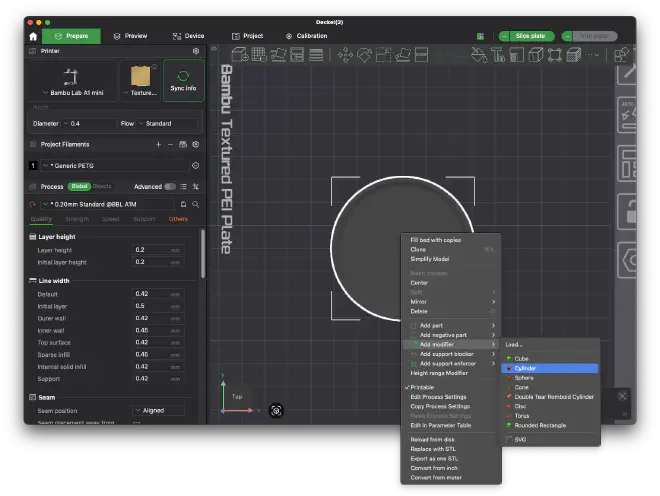
Then select the modifier (easiest to do in the Objects tab.) and lower the speeds on the modifier or change the wall order. If the issue is speed, I tend to just go to half the speed that caused me an issue.
You can compare speeds in the slicer preview.
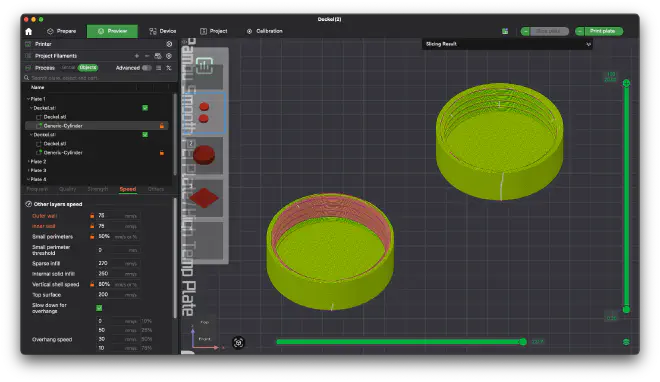
Modifiers are useful for all sorts of things, experiment!